Adding a Folder with Emails
To add a folder to a file cabinet, first determine the best location for the folder. Match the folder's content with the appropriate file cabinet to keep file retrieval efficient.
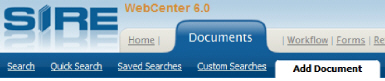
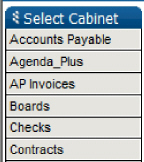
From anywhere within WebCenter click on the Documents tab and select the Add Document link. The Select Cabinet panel will appear on the left side of the screen.
Select the cabinet the new folder will be added to from the Select Cabinet panel. The index fields for the cabinet selected will appear.
Index the folder with descriptive information for the folder's content. Yellow fields are required. Grey fields cannot be edited.
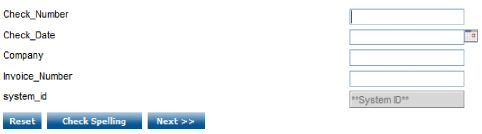
Press the Next button to continue to the next step. The preview page will open. Alternatively, press the Check Spelling button to open the Spell Checker, or press the Reset button to clear all data entered in the indexes.
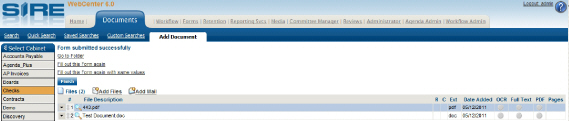
Review the information entered in the indexes, and Press the Save & Continue button to move to the next step. A message saying that the form was submitted successfully will appear, and the folder will have been created in the cabinet with the indexes. Alternatively, press the Back button to return to the previous page and make any corrections, or press the Cancel button to stop the submittal of the folder.
Click on the Add Mail (  ) link to add email to the folder. The
Add File window
) link to add email to the folder. The
Add File window
will open.

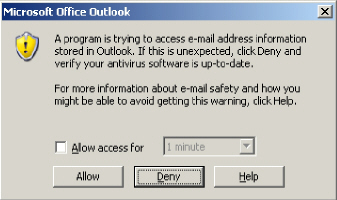
A warning may appear from Microsoft Outlook notifying the user that a program is trying to access their email. Check the ”Allow access for” checkbox and choose a time from the dropdown box to allow the system access to the user's email. Using this setting will also allow the user to add additional mail, without being prompted for access, for the time selected. Press the Allow button. The SIRE Email Import window will open and load the user's emails.
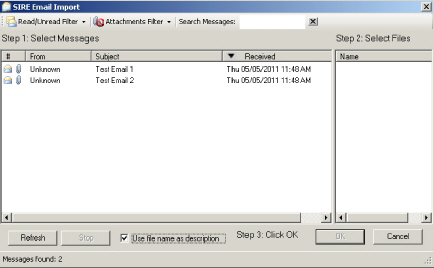
Use the functionality of the SIRE Email Import window listed below to find the email(s) to be added to the folder.
Read/Unread Filter: Select read, unread, or both to display emails that have been read or not.
Attachments Filter: Select attachments, no attachments, or both to display emails that contain an attachment or not.
Search Messages: Only emails containing the word or phrase entered in this field will be displayed.
Refresh: Press the refresh button to load any new emails that have been added to the user's email since the SIRE Email Import window was opened.
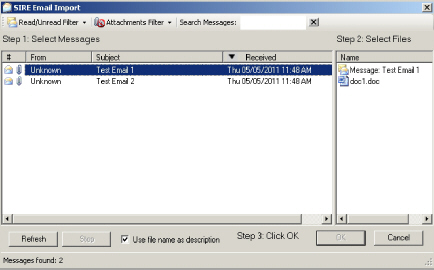
Select one or more emails to add to the folder. Hold down the CTRL or Shift keys to select more than one email at a time. The email body and all attachments will be displayed in the panel on the right of the SIRE Email Import window.
Select the email body and/or attachments to be added to the folder. Hold down the CTRL or Shift keys to select more than one email or attachment at a time.
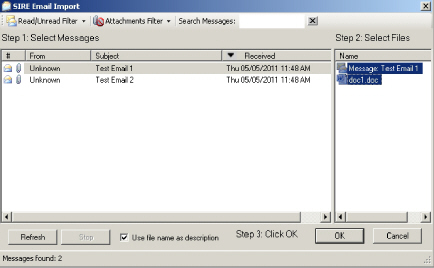
Make sure the ”Use file name as description” checkbox is checked if the title of the email or the name of the file being attached needs to be retained for the file. Press the OK button. The email or attachment will be added to the folder.
Press one of the following links or buttons if needed.
Finish Button: Pressing this button will return the user to the Add Document page where a cabinet can be selected to add a folder to.
Go to Folder: Clicking this link will open the Folder View of the newly created folder.
Fill out this Form again: Clicking this link will return the user to the page that displays the index fields so a new folder can be added to the same cabinet.
Fill out this Form again with same values: Clicking this link will return the user to the page that displays the index fields so a new folder can be added to the same cabinet. The same values that were just submitted will be filled in automatically.