Duplicating a Folder
WebCenter allows users to copy a folder along with its contents and place them in the same file cabinet as the original, or in a different file cabinet.
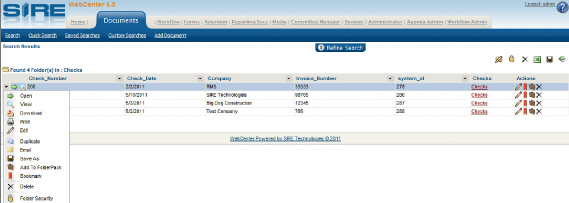
To find the folder to be duplicated perform any kind of search as outlined in the Creating and Performing Document Searches section of this manual. The Search Results page will appear.
Select Duplicate from the drop down menu to the left of a folder. The Duplicate Folder page will appear.
Select the cabinet the newly duplicated folder will be placed in from the Cabinet Name drop down field. If a different cabinet is selected than the original the system will place the index values into the new cabinet's indexes to the best of its ability.
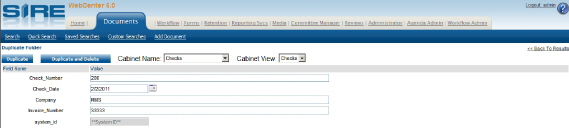
3a. Select the Cabinet View, if applicable, from the Cabinet View drop down field.
3b. Make any necessary changes to the index values.
3c. Press the Duplicate button to duplicate the folder and its contents. Alternatively, press the Duplicate and Delete button to duplicate the folder and delete the original. The Search Results page will be displayed again.