Performing Advanced Option Searches
The Advanced Options Search appears when a user clicks the More Options arrow at the bottom left of the Limited Options Search. The Advanced Options Search compares input search criteria against one or more index fields in one or more file cabinets. You can specify how index fields must match search criteria using search operators. Additionally, Full-Text Advanced Option Searches compare search criteria to the text content of files, and additional search parameters identify documents by File Description, Annotation, or SQL criteria.
Click the Document Tab > Search link. Alternatively, simply click the Document Tab. The Document Tab > Search Page appears by default.
Click the ”More Options” arrow at the bottom left of the standard Limited Options Search.

Scroll down the list of SIRE file cabinets, and click the radio button for each cabinet you want to search. The selected file cabinet(s) expands to display a list of associated index fields. Each index field includes a Condition drop-down menu, and a search Value field. Below this list of index fields, three additional search parameters are displayed: Search Full Text, Search File Descriptions or Annotations, and Search SQL.
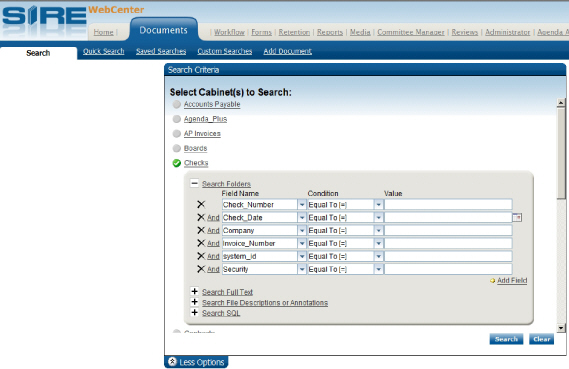
For each SIRE cabinet you want to include in the search, complete the following:
4a. For each index field you want to include in the search, select the search condition you will use to compare the index field to the input search criteria from the Condition drop-down menu. Options include the following conditional statements:
-
Equal To ( = )
- Greater Than ( > )
- Less Than ( < )
- At Least ( => )
- At Most ( <= )
- Not Equal To ( <> )
- Starts With
- Contains
- Ends With
- Does Not Start With
- Does Not Contain
- Does Not End With
- Is Between
4b. To the left of the field names the connectors ”And” and ”Or” are visible. A connector links multiple search criteria together. To change between the two operators simply click on them.
AND
Use the AND connector in a search request to connect two index search criteria, both of which must be found in the indexes retrieved.
Example: In a contracts cabinet if I search for Bob in my
contract manager index ”And”
maintenance in my contract type index
then I will only retrieve folders that have both Bob as the manager and
maintenance as the contract type. If Bob is also the manager of some contracts
that have a different contract type index value, such as service, they
will not be part
of the search results.
OR
Use the OR connector in a search request to connect two index search criteria, at least one of which must be found in the indexes retrieved.
Example: In a contracts cabinet if I search for Bob in my contract manager index ”Or” maintenance in my contract type index then I will retrieve all folders that have either Bob as the manager or maintenance as the contract type. I would see all of the folders where Bob was the manager listed in the contract manager index. I would also see all folders that had an index filled out for maintenance but had other managers listed in the contract manager index.
4c. In the Value field for the selected index field, input search criteria that will be compared (using the selected Condition) to the value of the index field.
If you want to add additional fields to compare input search criteria to index fields not listed for the selected cabinet, click the ”Add Field” link to the bottom right of the list of cabinet index fields.
4d. Search Full Text
If you want to search the text content of documents in the selected file cabinet, click the plus-sign to the left of the ”Search Full Text” option, and enter search criteria in the ”Full Text Criteria” field. For a description of all the Full-Text operators that can be used to specify the full-text search criteria, click the question mark icon to the right of the ”Full Text Criteria” field or see the ”Understanding Full Text Searches” section of this manual.
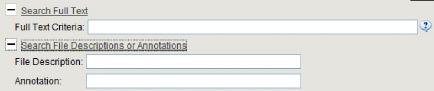
Note I:If a Full Text Search is performed and there are still values in any of the other search options then all criteria entered will have to be met for results to be returned.
Note II: If folders in the selected file cabinet have not undergone Optical Character Recognition (OCR) , and are not configured for full-text searching, the ”Search Full Text” option will not appear.
4e. Search File Descriptions or Annotations
If you want to search the Description and Annotations of documents in the selected file cabinet, click the plus-sign to the left of the ”Search File Descriptions or Annotations” option, and enter search criteria in the ”File Description” and/or ”Annotation” fields respectively.
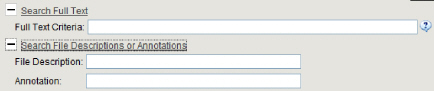
Note I: If a File Description or Annotation Search is performed and there are still values in any of the other search options then all criteria entered will have to be met for results to be returned.
Note II: Default descriptions that the system assigns a file such as File1, File2 ,File3, etc cannot be searched for. File Descriptions are only found if the file was imported into the cabine tand it retained its name or if the file is renamed after being added to the cabinet.
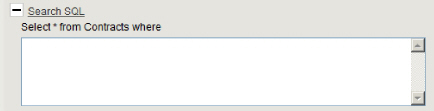
4f. Search SQL
If you want to search documents in the selected file cabinet using SQL statements, click the plus-sign to the left of the ”Search SQL” option, and enter search criteria in the ”Search * from [cabinet name] where” field.
Note I: If a SQL Search is performed and there are still values in any of the other search options then all criteria entered will have to be met for results to be returned.
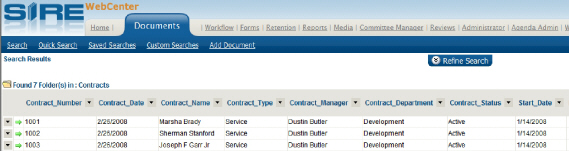
When all search criteria have been entered, press the Search button. The input search criteria are compared to the folders in the designated file cabinets. The Search Results Page appears, and displays all folders that match the input search criteria.